Is Remote Desktop Available on Windows 11 Home?
The short answer is: Yes, but with a major catch. If you are looking for remote desktop on Windows 11 Home edition, you will find that Microsoft differentiates the feature based on the edition you own:
l As a Client: Windows 11 Home users can use the Remote Desktop app to connect to other computers (such as a Windows 11 Pro or Enterprise machine).
l As a Host: Windows 11 Home cannot be remotely controlled via RDP. The “Remote Desktop” toggle in the Settings menu is simply missing or grayed out.
For users who need to access their home PC from the office or provide remote IT support services to family, this built-in restriction is a significant hurdle. While some tech-savvy users attempt “RDP Wrappers” or registry hacks, these often break during Windows updates and can pose security risks.
The most reliable solution is to use a dedicated third-party tool like AnyViewer.
Why AnyViewer is the Best Alternative for Windows 11 Home
If you are frustrated by the lack of native RDP support, AnyViewer provides a powerful, hassle-free bridge. As the premier Remote Desktop Windows 11 Home alternative, it is designed to bypass version-specific limitations, offering a worry-free experience to Home users as a leading free remote desktop software.
Comparison: Native RDP vs. AnyViewer
The following table highlights the key differences between Microsoft’s built-in tool and AnyViewer, showing why the latter is the preferred choice for Home users.
| Feature | Windows 11 Native RDP | AnyViewer Remote Desktop |
|---|---|---|
| Windows 11 Home Support | ❌ (Client Only) | ✅ Full Host & Client Support |
| Setup Complexity | High (Requires Port Forwarding) | Low (Plug-and-Play) |
| Network Flexibility | Limited to LAN/VPN | Works across different networks |
| Security | Basic RDP Encryption | ECC End-to-End Encryption |
| Mobile Access | Complex to configure | Dedicated iOS/Android Apps |
| Built-in Chat | ❌ No | ✅ Yes (Perfect for IT support) |
Top Features of AnyViewer for Windows 11 Home
AnyViewer isn’t just a workaround; it’s an upgrade. It equips Windows 11 Home users with tools usually reserved for expensive enterprise software:
l Cross-Platform Support: Connect to your Windows 11 Home PC from almost any device, including other Windows PCs, macOS, iOS, and Android, ensuring you stay connected on the go.
l Zero Configuration: Designed to be easy to use, AnyViewer eliminates the need for complicated port forwarding, static IPs, or VPN setups by working behind firewalls and NAT automatically.
l Unattended Remote Access: Set up your Windows 11 Home PC for “one-click” access. You can log in from anywhere without needing someone at the remote computer to accept the request.
l High-Speed File Transfer: Quickly move large files between devices using a secure, dedicated transfer window.
l Bank-Level Security: All sessions are protected by Elliptic Curve Cryptography (ECC) encryption, preventing data leaks and unauthorized access.
l Multi-Session Management: Control multiple PCs simultaneously or switch between them from a single, intuitive dashboard.
How to Access Windows 11 Home Remotely with AnyViewer
Getting started takes less than two minutes. Follow these three simple steps:
Step 1: Install and Sign Up
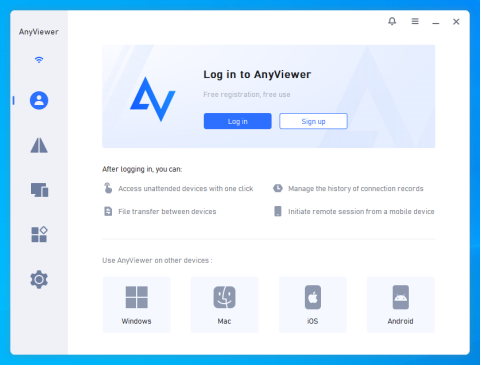
Download AnyViewer on both your Windows 11 Home PC (the host) and the device you are using to control it (the client). Create a free account within the app.
Step 2: Log In
Log in to the same account on both devices. This will automatically assign the devices to your account for secure, easy pairing.
Step 3: Start Remote Control
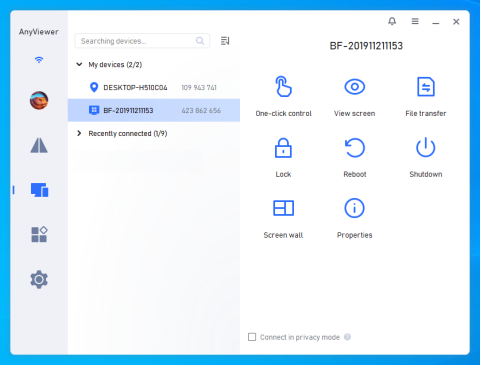
On your local device, go to the “Device” tab, select your Windows 11 Home computer, and click “One-click control.” You now have full desktop access!
Conclusion
While Microsoft continues to lock the host feature behind a paywall, users seeking remote desktop on Windows 11 Home don’t have to be left behind. AnyViewer offers a faster, more secure, and significantly easier way to manage your devices without spending a dime on an OS upgrade.
Whether you’re a remote worker, an IT enthusiast, or just helping a friend, AnyViewer is the definitive choice for bypassing Windows 11 Home limitations without spending a dime on an OS upgrade.