


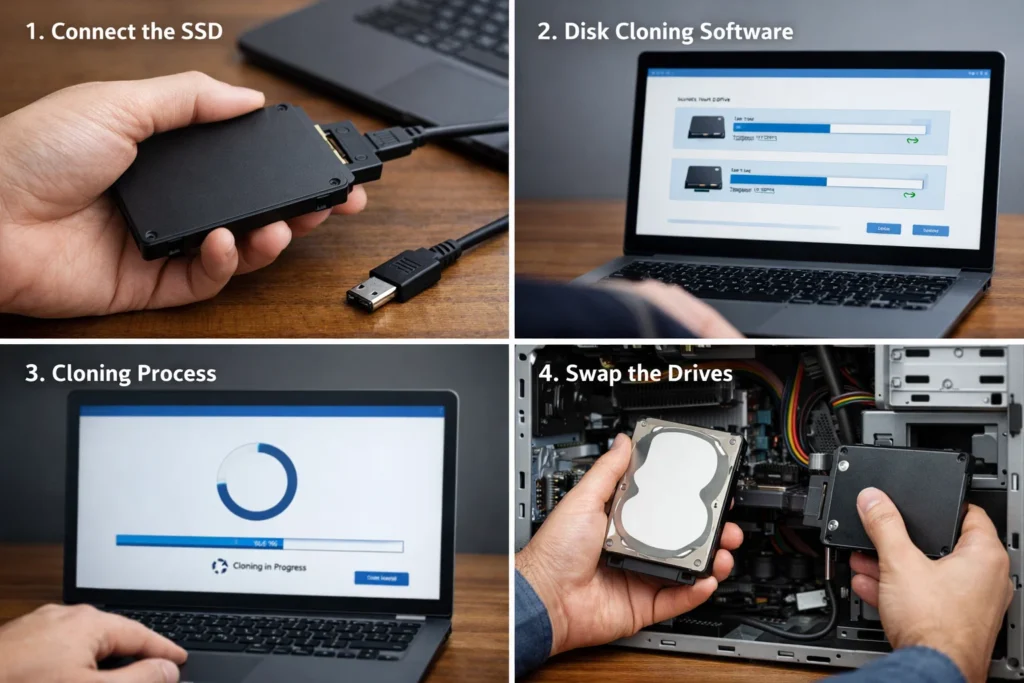
Upgrading your storage is one of the fastest ways to boost your computer’s performance—and learning how to clone hard drive to SSD makes the process simple, efficient, and hassle-free. Here are the key benefits of cloning hard drive to SSD:
l No need to reinstall Windows or applications – everything is transferred as-is
l Faster boot times and system performance – SSDs dramatically improve speed
l Preserves all files, settings, and configurations – no manual setup required
l Saves time and effort compared to a clean installation
Easiest Software to Clone Hard Drive to SSD
When it comes to learning how to clone hard drive to SSD, choosing the right tool can make all the difference. The easiest and most beginner-friendly option is AOMEI Cloner, a dedicated disk cloning solution designed to simplify the entire migration process without sacrificing performance or reliability.

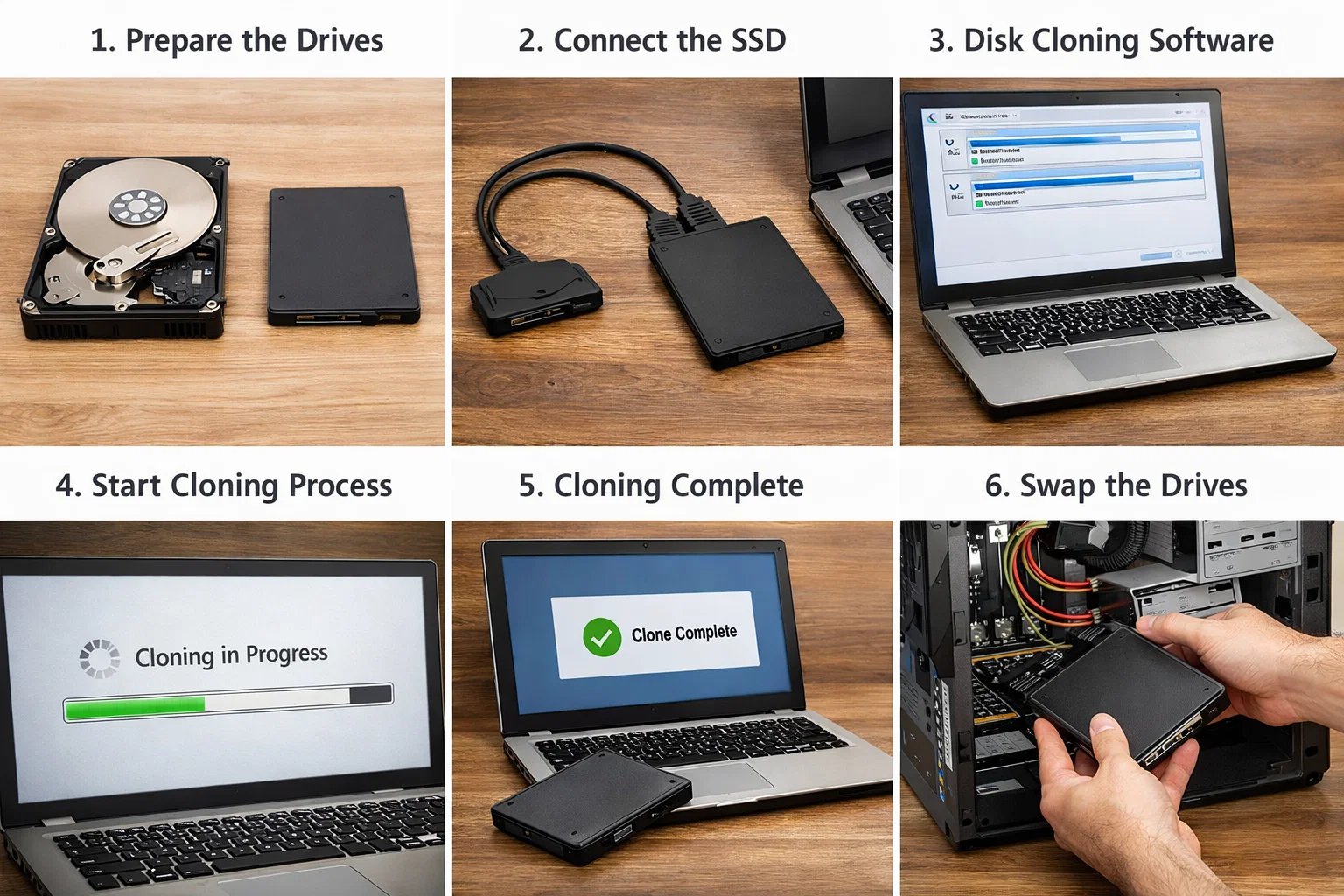
�� Key Features of AOMEI Cloner
✔ One-Click Disk Cloning
Easily clone your entire hard drive to an SSD without complicated configurations. The intuitive workflow guides you through each step.
✔ Intelligent Cloning (Sector-by-Sector Optional)
By default, it copies only used sectors, allowing you to clone a larger HDD to a smaller SSD. You can also choose sector-by-sector cloning for an exact replica.
✔ SSD Alignment for Better Performance
Automatically optimizes partition alignment to improve SSD speed and extend its lifespan.
✔ Supports Multiple Disk Types
Fully compatible with SATA SSDs, NVMe SSDs, M.2 drives, and traditional HDDs.
✔ Bootable Clone Capability
Ensures the cloned SSD is fully bootable, so you can start using your system immediately after cloning.
✔ Flexible Partition Resizing
Adjust partition sizes during cloning to make full use of your SSD’s capacity.
✔ Wide Windows Compatibility
Unlike tools that only support newer systems, this works seamlessly with Windows 11, 10, 8, and 7.
With its user-friendly design and powerful cloning capabilities, AOMEI Cloner is one of the easiest ways to handle disk upgrades and ensure a smooth transition to a faster SSD.
How to Clone Hard Drive to SSD in Windows 11/10
Cloning your hard drive to an SSD with AOMEI Cloner is a straightforward process that requires no technical expertise. Follow these simple steps to migrate your system, programs, and files safely and efficiently.
Step 1: Connect the SSD to Your PC
Make sure your target SSD is properly connected:
· For desktops: install it internally via SATA or NVMe slot
· For laptops: use a USB-to-SATA adapter or external enclosure if needed
Ensure the SSD is detected by Windows before proceeding.
Step 2: Install AOMEI Cloner and Choose “Disk Clone”
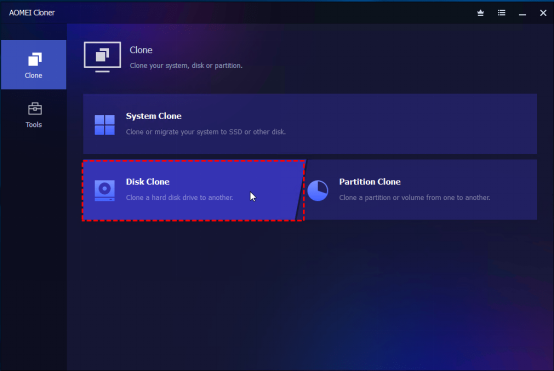
Download and install AOMEI Cloner on your Windows 11/10 computer. Open the disk clone software and select the Disk Clone option from its main interface.

Step 3: Select the Source Disk (HDD)
Choose your current hard drive (HDD) as the source disk—this is the drive containing your OS and data.
Step 4: Select the Target Disk (SSD)
Next, select your SSD as the destination disk.
⚠️ Note: All data on the target SSD will be overwritten, so make sure to back up any important files beforehand.
Step 5: Customize Partition Size (Optional)
If your SSD has a larger capacity than your HDD, you can click Edit Partitions to allocate unused space for better disk usage.
Step 6: Enable SSD Alignment and Start the Cloning Process
· Check the SSD Alignment option to optimize performance and extend the lifespan of your SSD.
· Click Start Clone to begin. The time required depends on your data size. Larger drives will take longer—plan accordingly.
Step 7: Boot from the Cloned SSD
After cloning is complete, you have two options:
· Replace the old HDD with the new SSD
· Or enter BIOS/UEFI and set the SSD as the primary boot drive
Restart your computer and verify that the system boots successfully from the SSD.
Pro Tips for a Smooth Cloning Process
· Close unnecessary programs before cloning
· Avoid interrupting the process once it starts
· Ensure stable power supply (especially for laptops)
· Keep both drives connected until you confirm successful boot
Verdict
In this guide, you’ve learned exactly how to clone a hard drive to an SSD step by step. This approach is especially useful for users who want a seamless transition with zero data loss and minimal downtime.
Whether you’re replacing an old, slow HDD or upgrading to a larger, faster SSD, cloning ensures your system looks and works exactly the same—just significantly faster.