About Windows partition manager
Managing a hard drive effectively is essential for maintaining a healthy computer and keeping files organized. While Windows includes a built-in utility for basic disk tasks, many users find it lacks the flexibility needed for more complex operations. For instance, the default tool often struggles with merging separate sections of a drive or resizing volumes without the risk of losing important information.
To overcome these hurdles, many people turn to specialized partition software. A dedicated manager provides a much more intuitive interface and offers powerful features that the standard system tools simply cannot match. By using a reliable third-party application, you can gain full control over your storage space. These tools allow you to create, delete, and format partitions with confidence.
Furthermore, a quality free partition manager enables you to perform advanced actions like merging non-adjacent space or expanding a drive smoothly. This ensures your operating system has enough room to breathe while your personal data remains neatly categorized. Choosing a dependable disk management tool is a smart way to optimize your PC’s performance and ensure your hardware works exactly how you need it to without any unnecessary costs.
Download the disk partition manager
AOMEI Partition Assistant is free partition software. It is a versatile hard disk manager designed to simplify everyday computer tasks through its wide range of practical features. This software helps you optimize your disk space while ensuring that managing partitions remains a simple process. It works reliably across various versions of Windows, including Windows 7 through Windows 11, and consistently updates to stay compatible with system changes.
The tool provides a complete set of partitioning options such as resizing, merging, and moving partitions to fit your needs. It supports multiple file systems like NTFS and FAT32, allowing you to transfer a HDD to SSD, convert between them without the risk of losing your files. Beyond basic management, the software offers helpful utilities to convert MBR to GPT without data loss, recover lost partitions, and clean up junk files to keep your system running fast. For more complex situations, you can even create bootable media to manage your disks if the computer fails to start.
One of the most convenient aspects is the ability to queue multiple changes and apply them all at once to save time. A great example of its efficiency is the merge feature, which allows you to combine partitions or add unallocated space to an existing drive. This is particularly helpful when your system drive runs low on space. While advanced functions are available in the paid version, the free version remains a powerful and user-friendly choice for anyone needing a dependable disk management tool.
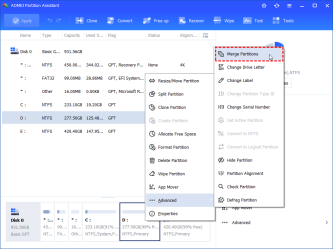
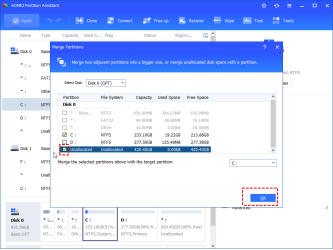
Step 1. Install and launch AOMEI Partition Assistant. Right-click the partition which you want to merge, choose “Advanced” and select “Merge Partition”.
Step 2. In the pop-up window, tick the partition in the check box and select the target partition (we choose E:) And then click “OK” to continue. In this case, all the data on partition E will be transferred into D:\e-drive.
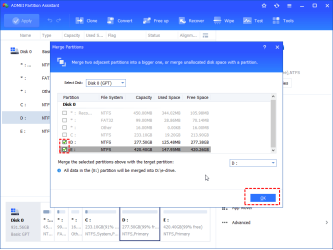
If there’s unallocated space on your disk, you can directly merge it into the target drive wherever it is.
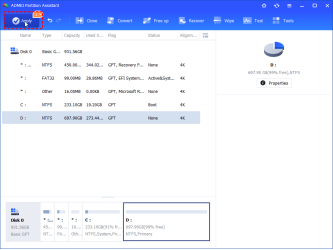
Step 3. You can preview changes in the Pending Operations column on the left. To save the changes, please click “Apply” on the toolbar.
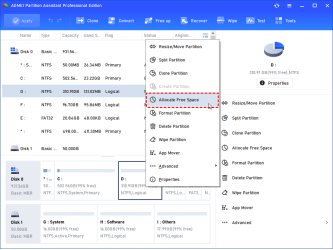
If you want to allocate free space on a hard drive to another, AOMEI Partition Assistant, the free partition manager also offers the “Allocate Free Space” function for you.
Conclusion
In conclusion, finding a reliable Windows partition manager is essential for maintaining the health and organization of your computer’s storage.
AOMEI Partition Assistant stands out as a powerful and user-friendly disk management tool that simplifies complex tasks such as resizing, merging, and cloning. Whether you are looking to fix a low disk space warning or simply want to reorganize your data, this disk partition manager provides the flexibility and safety that standard system utilities often lack.
By choosing to download free partition manager software like this one, you gain access to professional-grade features without any initial cost. It empowers you to take full control of your hard drive, ensuring that your operating system runs smoothly and your files remain secure. If you are ready to optimize your PC’s performance and manage your partitions with total confidence, AOMEI Partition Assistant is an excellent choice for any Windows user.