Lost Your Precious Files!
It’s frustrating when you realize important files have been deleted. Maybe you hit delete too fast, or your system crashed at the worst possible time.
First of all, check your Recycle Bin and backups. If they are not in the Recycle Bin or just using the Shift + Delete to delete them, you have to use professional recovery software for Windows to recover them.
In most cases, those files aren’t actually gone until they are overwritten. That’s exactly why Windows data recovery software exists. Having the right tool can help recover files from any complex data loss situation.

Why Need Windows Data Recovery Software
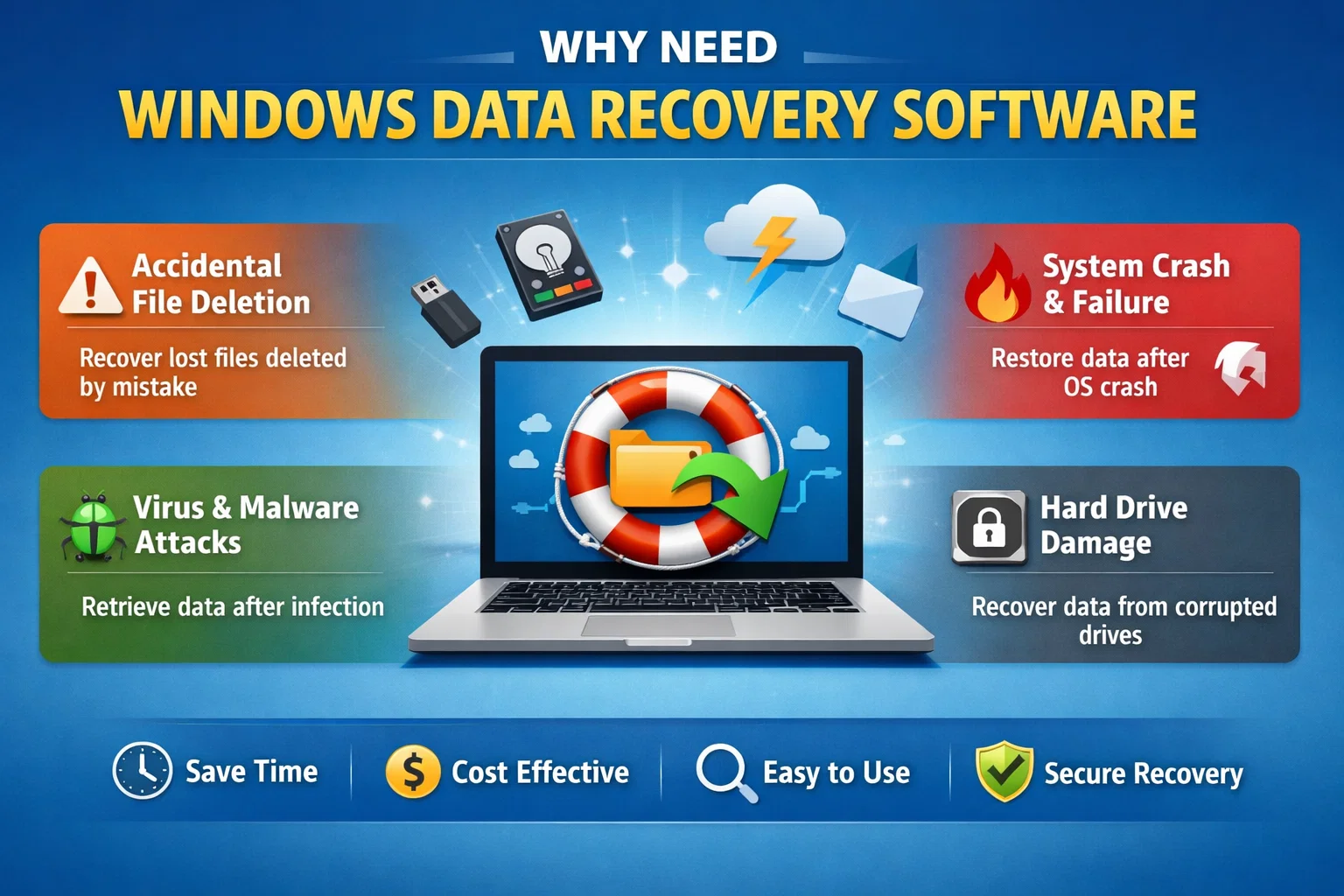
That’s why you need Windows data recovery software:
l Human error happens constantly. We have all accidentally selected the wrong folder or pressed Shift+Delete out of habit. These mistakes are incredibly common.
l Hardware failures give no warning. Your drive makes clicking sounds or refuses to boot. When hardware fails, your files do not vanish—they stay on the drive, just inaccessible through normal means.
l Malware attacks are on the rise. Malicious software can encrypt your files or corrupt the file system entirely.
l System updates sometimes go sideways. A failed Windows update or corrupted system file can leave your data inaccessible. Recovery software reads the raw data underneath when Windows cannot.
Or other reasons might cause data loss, what should you do to recover them fast? You need the best data recovery software for Windows to make it.
Best Free Windows Data Recovery Tool – MyRecover
Now, you need a powerful yet simple Windows recovery software tool. MyRecover fits that description perfectly. It’s designed for everyday people who want their files back without the complicated settings.
Key Features:
l MyRecover is a dedicated recovery utility built for Windows, supporting NTFS, FAT32, exFAT, and ReFS file systems.
l It handles internal drives, external HDDs, USB flash drives, and SD cards with ease.
l The interface is clean and straightforward, just a clear path from scanning to recovery.
l It offers both quick and deep scanning modes. Quick scan handles recently deleted files in minutes. Deep scan goes sector by sector, recovering files from formatted or corrupted partitions.
l Filters by file type, date modified, and size help narrow down results.
l MyRecover preserves the original folder structure, which is easy for you to find the lost files quickly.
l Supports over 1,000 file types, such as documents, music, videos, audio, archives, Excel, and many more.
Now, it’s time to learn how to use the free data recovery software in Windows 11 to recover lost files. Don’t worry, check the following guide.
How to Recover Deleted Files Quickly with Recovery Software for Windows
Important Notes:
l Stop using the affected drive immediately.
l Don’t save new files, install updates, or browse the web. All of these activities write data to the drive.
Here are the steps to recover deleted files in a Windows 11/10 computer with MyRecover:
1. Please install MyRecover after downloading, then launch it. Install it on a different drive than the one you’re recovering from.
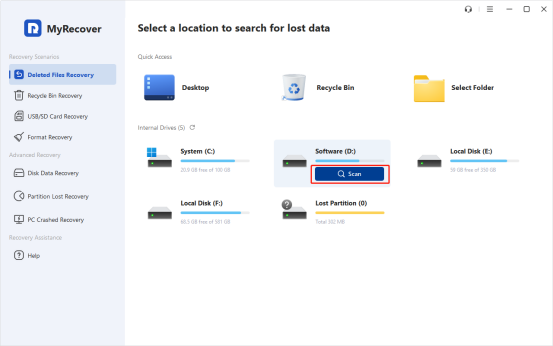
2. Tap Deleted Files Recovery, hover over the drive where the deleted files were located before, and hit Scan. Wait for it to complete.
3. Select the files you need and hit Recover.
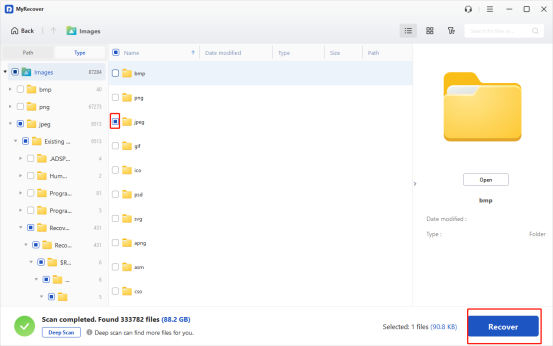
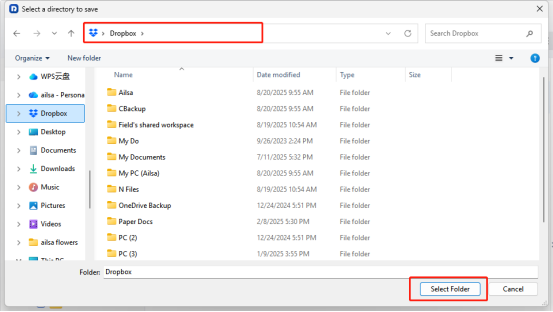
4. Choose a safe location to save these files.
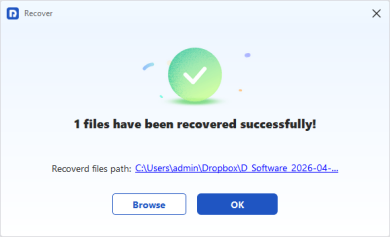
5. Once done, you can check these recovered files in the destination folder.
Tips:
l If the quick scan does not find your deleted files, you can try a deep scan to find more lost files, which takes much more time.
l You can also double-click to preview files before recovery as long as you have upgraded to MyRecover Professional or higher.
l Besides, if your computer won’t boot up and these files are located in your system drive, you can create a bootable USB media to boot up the computer and recover files from it directly.
The End
Losing files feels awful. But most of the time, those files are still there, waiting to be recovered. With the right Windows data recovery software ready when you need it.
Fortunately, the best free data recovery software for Windows 10/11, MyRecover, is your best choice, which gives you a straightforward path through the chaos—no technical degree required, just a few clicks and a little patience.